
I recently built my website using WordPress and Elementor. It’s a visual builder, so while designing the site was fun, getting Google Tag Manager and Google Analytics working correctly required digging into the actual theme files.
At first, I made the mistake of using Google Site Kit, thinking it would make things easier. But instead, it conflicted with the manual GTM code, caused data issues, and I ended up learning it the hard way.
Eventually, I found the cleanest and most reliable method:
Pasting the GTM code manually into the header.php files using WordPress’s Theme File Editor.
In This Blog I will be covering
-
- What is a Google tag manager (GTM) and why use it?
-
- What is Google Analytics (GA4)?
-
- How does GTM and GA4 work together?
-
- How to Create a GTM Account?
-
- How to Create a GA4 Account?
-
- How to Connect GTM with GA4?
I will also cover a few tags I configured in GTM on which I made Videos to follow step by step.
-
- Google Analytic Configuration
-
- Contact us Click Button
-
- Navigation Click tracking
-
- Page Scroll Tracking
What is Google Tag Manager?
In simple terms, Google Tag Manager (GTM) is a tracking tool that lets you monitor what users do on your website or mobile app — without constantly touching your site’s code.
Here’s how it works:
You install a small snippet of GTM code on your website. This gives you access to track everything from button clicks to form submissions, scroll depth, or even QR code scans — depending on what tags you create.In my case, I manually added the GTM code snippet into my WordPress site to give it tracking access. Once it was installed, I log into GTM and start creating tags — which are basically instructions that say, “Track this specific action.”

Why This Matters
Instead of editing my website code every time I want to track something new, GTM gives me one centralized dashboard where I can:
-
- Create new tags (like click tracking)
-
- Set conditions (when should that tag fire?)
-
- Send the data to tools like Google Analytics, Microsoft Clarity, or Google Ads
GTM makes your website smarter — and turns user behavior into useful data.
How GTM Works: The Three Key Pieces
To understand GTM, you need to know three things: Tags, Triggers, Variables and Parameters
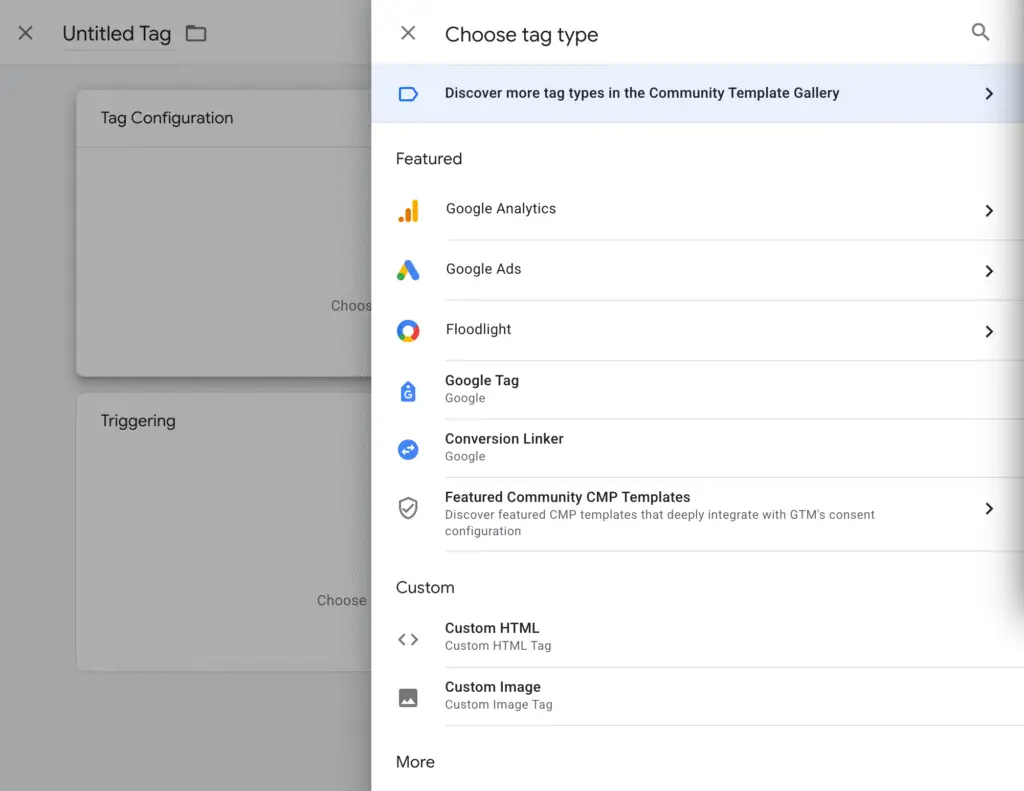
Tags are the actual bits of tracking code that send data to tools like Google Analytics, Microsoft Clarity, or Google Ads.
Example: A GA4 tag that sends page view data to your Google Analytics account.
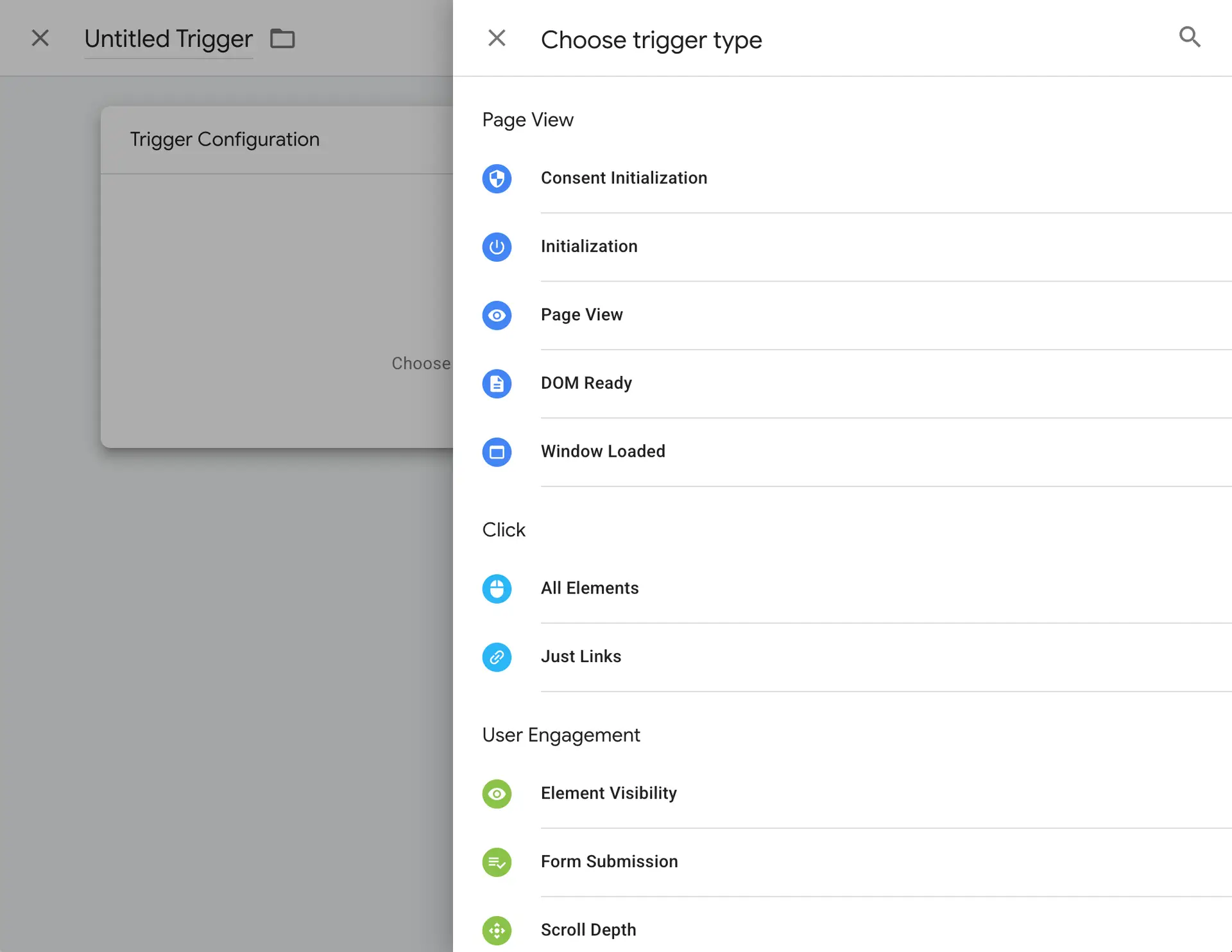
Triggers tell GTM when to fire a tag.
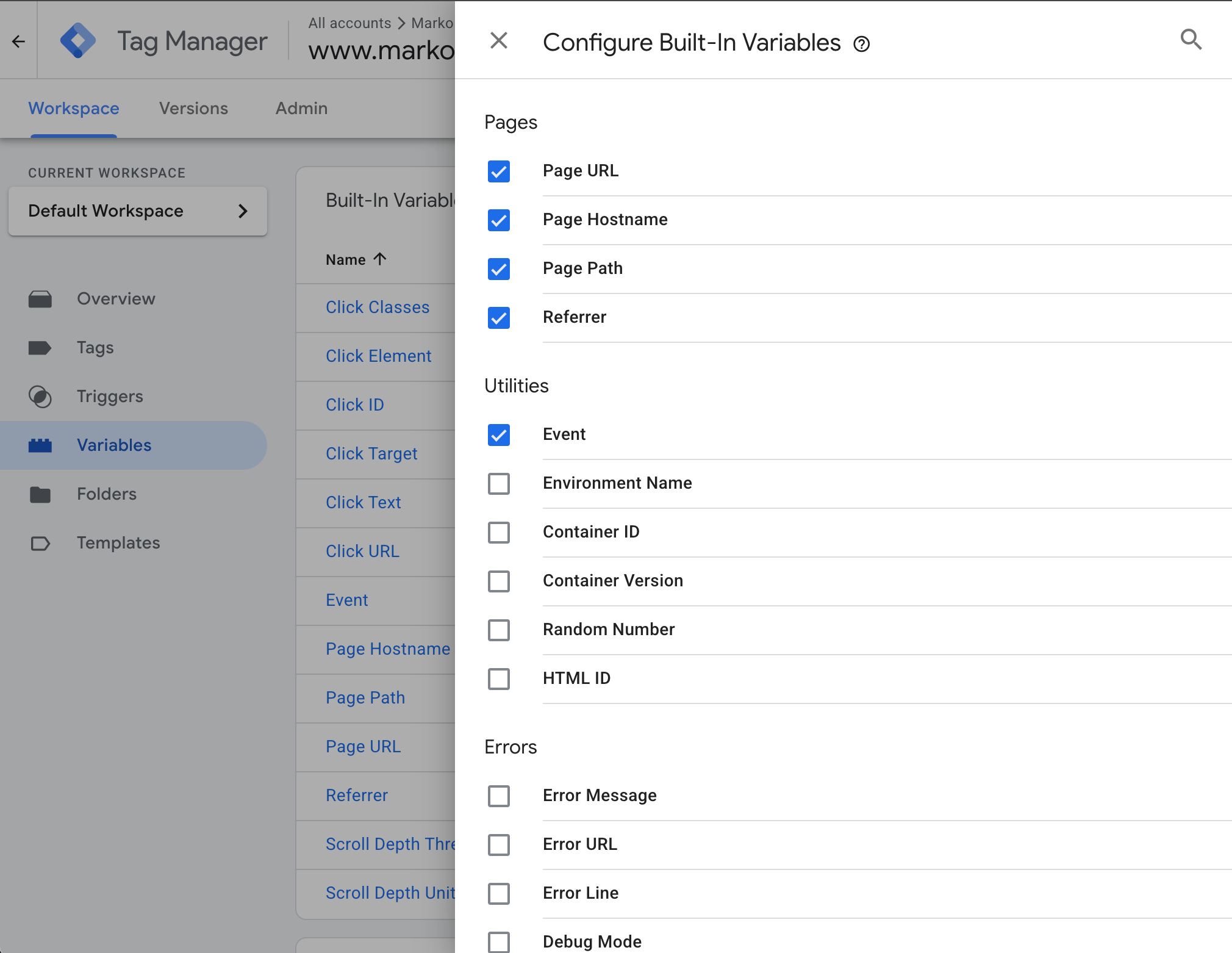
Variables are the dynamic values GTM can use within tags and triggers.
Parameters are specific conditions that define how or when tags and triggers behave. They fine-tune what data is passed.
What is Google Analytics?
Google Analytics (GA4) is a web analytics tool that collects and displays data about how people use your website.
In my setup, I’m using Google Analytics 4 (GA4) to collect the data that’s sent from Google Tag Manager (GTM). GTM tracks user actions (like clicks, scrolls, or page views), and GA4 turns those actions into visual reports I can actually read and understand.
With GA4, I can:
-
- See how users are navigating through my site
-
- Understand which pages they visit the most
-
- Track conversion actions like clicks on my Contact button or QR code page
-
- Learn where users drop off or stop engaging
Even though my site is just a portfolio/service website for now, setting up GA4 helps me understand how users interact with it — and prepares me for future projects like ecommerce, client dashboards, or ads that need performance tracking. Basically, it gives you a full view of your audience’s journey.

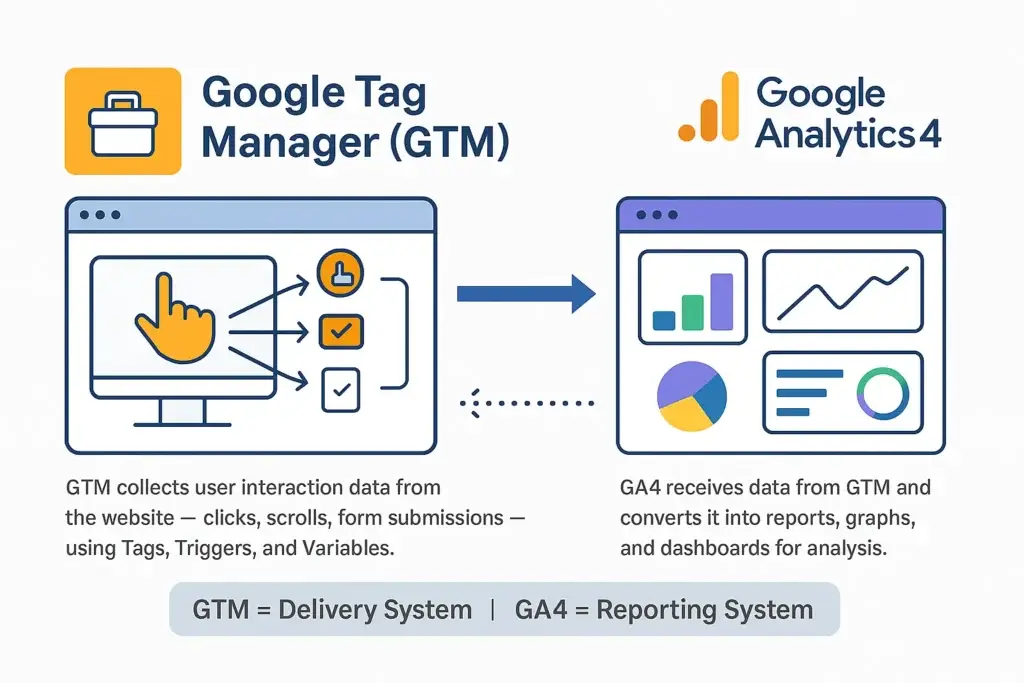
How does GTM and GA4 work hand to hand?
Google Tag Manager (GTM) and Google Analytics 4 (GA4) are like a team:
-
- GTM is the delivery system — it watches what users do on your site and sends that info.
-
- GA4 is the reporting system — it takes that info and turns it into charts, graphs, and insights.
How I Created a Google Tag Manager Account.
How I Created Google Analytics Account.
In GTM, I will go over some of the time the tags i have created, these are basic tags which I have created which. There are very complexes tags wcan be created. However, the tags i have created are for bginngers to follow.
Challenges I Faced & Things to Avoid
-
- Double Measurement ID error
-
- Debugging issues
-
- Common beginner mistakes (e.g., typos, forgetting to publish container)
-
- Misunderstanding of what “Active” meant in Tag Assistant
The Tags I Created
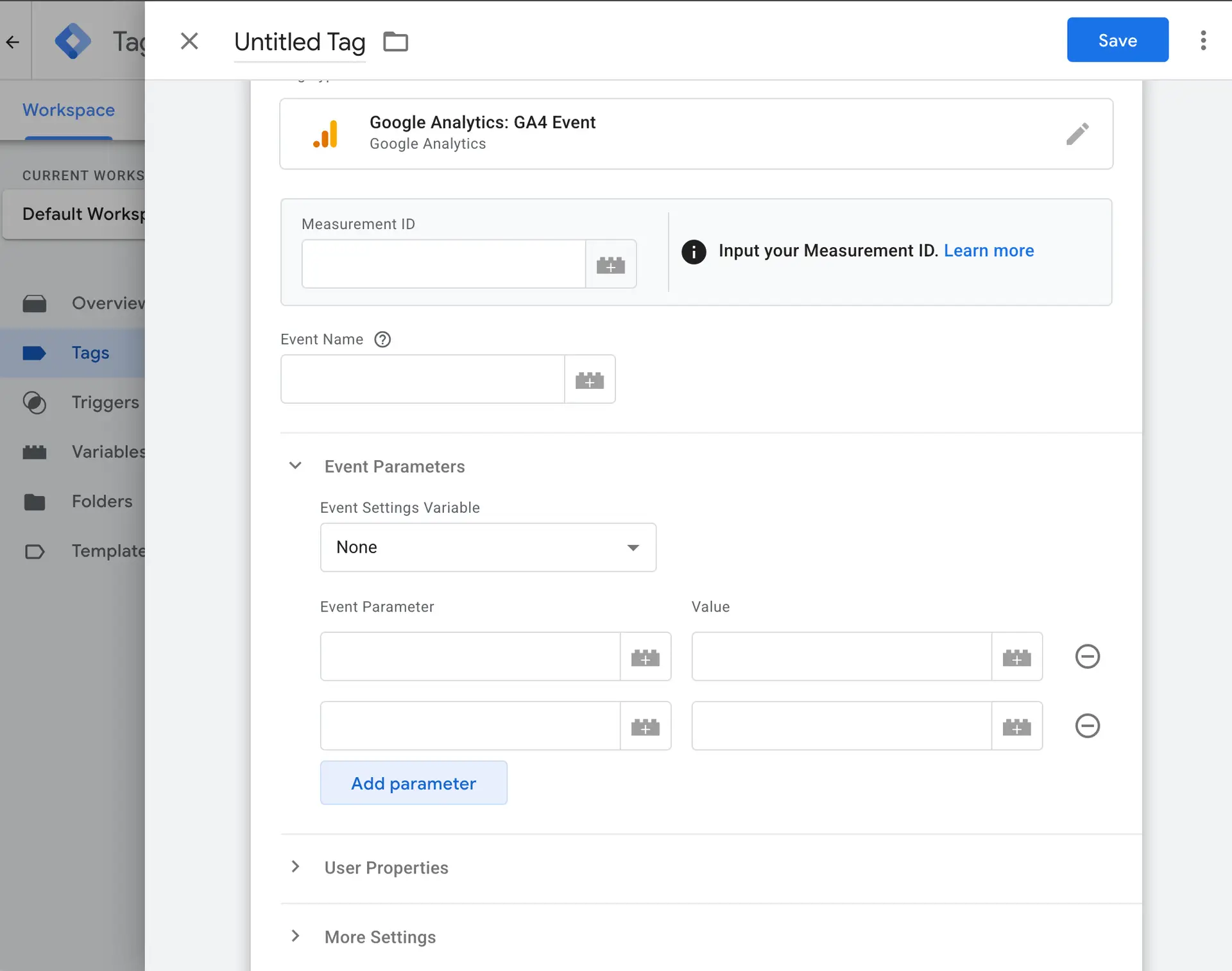
1) Google Configuration Tag
This is the base GA4 tag that sends general data from the website to Google Analytics. It fires on All Pages.
-
- This Tag will connect/ configure gtm with GA4
These are the steps to follow
-
- Tags’ → ‘New’ → Tag Configuration → Tag Type: Google Analytics: Google Tag
-
- Paste your Measurement ID from GA4 — mine starts with ‘G-
-
- trigger → Tigger Type → All Pages — this ensures GA4 loads across your entire site.
-
- Name the tag something like ‘GA4 Config – Markology Labs’
-
- This tag is the foundation— it loads GA4 on every page, so all other events can be tracked accurately.
2) Contact Us Click (Button Click Tracking) Tag
Purpose: Track when users click the “Contact Us” button — a high-intent conversion action.
I created a tag to track when someone clicks on the Contact button. It helps me see if people are engaging with the site or trying to reach out.
Steps:
-
- “Next up — let’s track the Contact Us button click.”
-
- “Go to ‘Triggers’ → New → All Elements → ‘Click – Contact Us Button’.”
-
- “Set the condition: Click Text contains ‘Contact Us’.”
-
- “Then go to ‘Tags’ → New → GA4 Event → name it ‘Contact Us Click’.”
-
- “Use the GA4 Config tag as the config.”
-
- “Set event name as contact_us_click and optionally add parameters like page_path.”
-
- “Assign the ‘Click – Contact Us Button’ trigger.”
-
- “This tracks users who are actively trying to reach out — super important for lead tracking.”
3) Nav_Click (Navigation Menu Clicks)
Purpose: Understand how users move around your site via the main menu.
This tracks which menu item users are clicking (like “Home,” “Services,” etc.). It’s good for analyzing what visitors care about most.
-
- Triggers → New → All Elements → Trigger type: ‘Click Classes’.”
-
- Condition: Click Classes contains elementor-item (or your nav class).”
-
- Create a new tag called ‘Nav_Click.
-
- “Set tag type to GA4 Event. Use event name: nav_click.
-
- “Use parameters like: menu_item_text, and map it to {{Click Text}}.”
-
- “Assign the Nav trigger.”
-
- “This helps you analyze which pages your users are most interested in navigating to.”
4) Page Scroll Depth
Purpose: Measure how far down users scroll to evaluate engagement with long-form content.
This tag fires when someone scrolls 25%, 50%, 75%, and 90% down a page. I want to know if people are reading or bouncing.
Steps:
-
- “Last tag — scroll depth tracking.”
-
- “Go to ‘Triggers’ → New → Trigger type: Scroll Depth.”
-
- “Choose vertical scroll and set thresholds: 25%, 50%, 75%, 100%.”
-
- “Create a tag named ‘GA4 Scroll Depth’ → GA4 Event type.”
-
- “Event name: scroll_depth.”
-
- “Set parameters: scroll_percentage = {{Scroll Depth Threshold}}, page_path = {{Page Path}}.”
-
- “Attach the Scroll Depth trigger.”
-
- “This tells me how far people read on a page — great for blog and landing page optimization.”
What I Learned
Setting up Google Tag Manager and GA4 wasn’t just about getting it to work — it taught me a lot about accuracy, debugging, and real-world problem solving.
Here are my biggest takeaways:
-
- Accuracy matters — Every detail counts. A wrong Measurement ID or a small typo in a trigger condition can break the entire tag.
-
- GTM and GA4 are powerful, even for a simple portfolio site. Once set up, they give deep insights into how people interact with your content.
-
- Debugging is a skill. I had to use tools like Tag Assistant and GA4 DebugView multiple times to figure out what was working (and what wasn’t).
Trial and error is part of the process. No matter how many tutorials you watch, things will break — and that’s where the real learning happens.
Special Highlight: My QR Code Scan Tag
One of the most interesting tags I created was for my QR code, which I printed on my business cards.
Here’s how it works:
-
- The QR code leads to a /connect page on my website.
-
- On that page, I list links to my social media, website, and other contact methods.
-
- I created a custom event tag in GTM that tracks:
-
- When the QR code page is visited (meaning the QR was scanned)
-
- Which specific link the visitor clicks (Instagram, website, etc.)
-
- I created a custom event tag in GTM that tracks:
This was one of the hardest tags to figure out, but also the most rewarding. It gave me a way to measure offline-to-online engagement — tracking how real-world interactions (like giving someone my card) turn into online connections.
Even though my site doesn’t need complex tracking, doing this proved to myself (and future clients) that I can:
-
- Set up technical tags
-
- Measure user behavior
-
- Solve problems in real time
Tools That Helped Me
-
- YouTube: I followed long, detailed videos (especially this Hindi tutorial) to understand each step.
-
- ChatGPT: Every time I got stuck, I asked questions, debugged issues, and tested ideas with help from ChatGPT.